
Become a supporter
It’s easy to plan a route on cycle.travel then get it onto a GPS unit.
If you have a recent Garmin GPS cycling unit, we recommend using Garmin Connect to transfer your routes wirelessly.
Make sure you have an account on Garmin Connect as well as your cycle.travel account. Download the Garmin Connect app to your phone, and link it to your GPS via Bluetooth.
Then on cycle.travel, when you've planned and saved your route, click the GPS button. You'll see this:
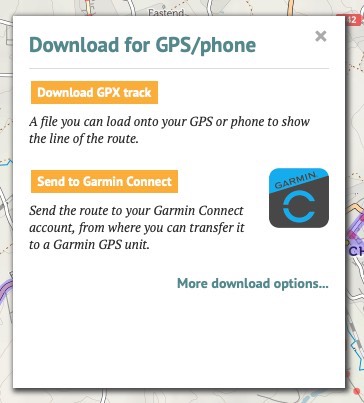
Click Send to Garmin Connect. A new window will appear asking you to log in and grant permission to cycle.travel. (You’ll only have to do this once!)
Once you’ve done this, your route will be transferred to Garmin Connect as a ‘course’. The Garmin Connect app on your phone can then transfer it via Bluetooth to your GPS unit.
You can also download a ‘GPX track’ file, which can be read by all brands of GPS and many apps. This will show the route as a line on your GPS screen. Click Download GPX track, and the file will be downloaded to your computer or phone. You can then copy it manually to your GPS unit.
There are lots of different formats of GPS file. You can access these by clicking More download options. GPX tracks are simplest, but you can also choose a ‘TCX course’ which includes turn-by-turn prompts. cycle.travel offers these formats:
If you choose a format with turn icons, you can get cycle.travel to position them slightly ahead of each turn. This means any audible warning from your GPS will sound before you get to the turn. Select TCX course or GPX route, then select Announce turns in advance.
When you download a route from cycle.travel, it will by default simply appear as ‘cycle.travel’ on most GPS devices. To give it a distinct name, save it on cycle.travel before you download it. The name you choose on cycle.travel will be reflected in your download.
You can include elevation data in the downloaded file so that it shows up on your GPS unit. To do this, download from the map page (not your journeys page) and click the elevation button so the graph is showing before you download it. Elevation data can be included in GPX tracks and all TCX files.
You can mark your favourite cafés, stretches of road, climbs, or anything else on cycle.travel.
On desktop, right-click the location you want to add a marker (or control-click on Mac).
On mobile, hold your finger down at that location, or use the camera icon in the bottom left.
You can choose a symbol for the marker, add a comment, and (on mobile) take a photo.
Markers can be saved as:
Your markers are shown with small black ‘pin’ icons when you view the map. You can turn them on and off using the map layer menu (top right).
When you’re planning a journey, you can click anywhere along the route, and then click See photos to see (public) photos that other cycle.travel users have taken.
When planning your route, it’s good to know what the road or track quality will be like. Clicking on any section of your planned route will open up a popup, from where you can choose:
There are two additional buttons on the left: one to reverse your journey, one to undo the last change you made.
When you click a via point on your journey, you’ll see a More… button in the bottom right. This offers access to additional tools:
cycle.travel supporters can download a colour map PDF of the journey.
First save the journey, then click the PDF button. You’ll be asked to choose a scale – City scale is the largest scale (most close-up), Local and Touring are in between, and Long-distance is the smallest scale (most zoomed out). The PDF typically takes a few seconds to generate.
For each journey, detailed turn-by-turn instructions appear in the left-hand panel. You can have a compact printed form of these, called a ‘cue sheet’. Save the journey and click PDF as above, but then choose Cue-sheet (instructions only).
Creating an account on cycle.travel lets you customise your map preferences. Log in, go to My bike then Profile. Here you can choose miles or kilometres, your average speed and number of miles per day, and whether clicking on the map always adds new via points.
You can also set your home country, which helps cycle.travel guess whether you mean France or Texas when you type ‘Paris’; and your home location, which is used to centre the map when you first view it.
Currently we support routing in Europe (including the UK, but not Russia, Ukraine or Belarus); North America (US, Canada, Mexico); Australia; and New Zealand.
The fast speed of the route-planner is very hardware-intensive. Adding more countries means renting more expensive servers, and fine-tuning the routing rules for each country to reflect road characteristics and traffic behaviour. Although more countries are added gradually, long rides across Asia or Africa aren’t currently a priority.
The mobile app includes full worldwide cycle mapping, although routing will only work in the areas listed above.
Garmin Connect can sometimes refuse to accept routes even when it was working previously. The equivalent of “turning it on and off again” usually fixes this.
Go to your profile page and click ‘Remove Garmin Connect link’ at the bottom left. This will break the link between cycle.travel and Garmin Connect. Then go back to the map page and try to send a route to Garmin Connect. You will be prompted to link the two once more, and hopefully this should fix it.
Around once a month, we update our website mapping from the source data. To do this we have to temporarily disable our mapping server for one night (usually UK time from around 8pm–8am). During that time you’ll see OpenStreetMap instead. The routing is still the same, it’s just the basemap that changes briefly.
You can download a GPX or TCX file using the ‘GPS’ button, or directly from the cycle.travel app on your smartphone. You can then open the GPX or TCX file with the Wahoo app on your smartphone. We hope to offer a direct Wahoo link in the medium term.
Yes! You can now get cycle.travel on your iPhone or Android.
cycle.travel’s costs are covered by support from users and a little commission from hotel bookings, so there’s no free routing API. However, if you do want to use cycle.travel’s mapping and routing, drop me a line and we can chat.
The “Sign in with Apple” option includes an Apple-provided option to “Hide my email”.
Selecting this means cycle.travel doesn’t receive your email address. So if you already have an account registered with your email address, cycle.travel won’t be able to connect it with your Apple login.
We’d suggest you either a) don’t select “hide your email”, or b) use Apple sign-in all the time, or c) don’t use Apple sign-in at all. But if you’re really stuck, drop us a line at [email protected] and we can manually marry up your two accounts.
Thank you! You can make a donation via Patreon or in the app. But you can also help by spreading the word about cycle.travel to your fellow cyclists.
Unlike many other route-planners, cycle.travel doesn’t have external funding from venture capitalists or investors – it’s entirely independent. So your support makes a big difference.
Post at our forum and I’ll try to fix it!
Please say what the route is where the bug or unexpected behaviour is happening. You can copy and paste the address from your browser (e.g. “https://cycle.travel/map/?journey=310586”). Please make sure the route is public, not private, or I won’t be able to see it.
cycle.travel has five route-planning modes for you to choose from:
The fast speed of the route-planner means that it isn’t feasible to add lots more options. Basically, the speed comes from precalculating all the best routes. Adding more options means precalculating more routes, which requires more memory, which means more expensive servers.
Although that rules out adding fine-tuning options like “no hills” or “don’t mind traffic” or “very little traffic”, cycle.travel aims to make it easy for you to adjust the route (by dragging) if there are sections you want to avoid.
You can turn the route-planner off between any two points, by clicking the first of the points and choosing Go direct to the next one. This means you can plan a short stretch on a busy road even if cycle.travel doesn’t recommend it.
(If you want to read up on the maths behind cycle.travel’s super-fast routing algorithm, it’s known as Contraction Hierarchies.)


Made in the Cotswolds. Published by Éditions Système D Ltd.
Log in with your cycle.travel account:
| Password |
Or simply use your account on:
